
- Published on
Complete Reference on Ms Word Equation Editor Shortcut
- Authors

- Name
- Jing
原文地址 www.pickupbrain.com
Equation is an integral part of many technical manuscripts, including thesis and research papers. However, typing it in Ms Word is cumbersome and tiring task. To ease it, Microsoft Word has LaTeX type equation editor shortcut feature for typing equation. These equation editor shortcut as termed as Math AutoCorrect and are available in versions of Microsoft Word 2007 and above.
Equation editor shortcut has a potential to save a lot of time and effort. For e.g., to get Greek letter , you can type \alpha instead of going to Symbols in Insert Tab and searching for .
Enabling Math Autocorrect
Most version of Microsoft Word, Math AutoCorrect is enabled by default. To ensure you can visit, File Menu → Options → Proofing → Autocorrect Options → Math AutoCorrect and ensure box against “Replace text as you type” is checked. These shortcut work only inside Equation Editor. However, if you want to use it outside Equation Editor, then check “Use Math Autocorrect Rules outside of math regions“
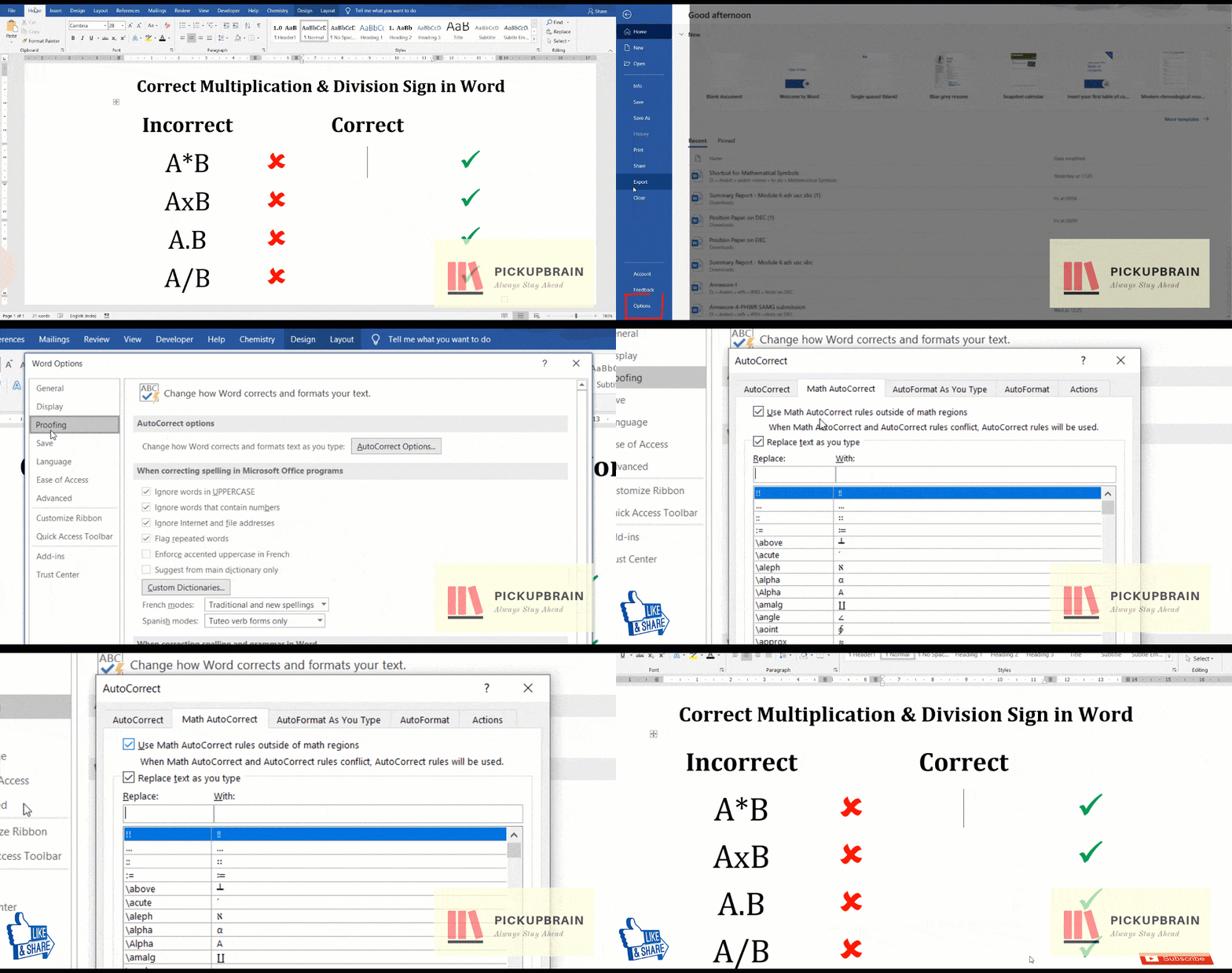 How to enable math autocorrect outside math region in Microsoft Word
Equation Editor Shortcut
Shortcut to get equation editor in Ms Word and Power Point is “Alt + =” (i.e. hold down Alt key while typing ‘=’). Although you can also click on “Equations” under the “Insert” Tab to get it.
Spaces is an important part of Math AutoCorrect shortcut. It tells Ms Word and Power Point when it is time to translate a part of equation into Mathematical Symbols/Operators. For clarity whenever necessary, space are shown as <sp> in Math AutoCorrect formula.
Subscript & Superscript
Equation editor shortcut for subscript and superscript is _ and ^. Anything after _ or ^ will get converted into subscript or superscript respectively, after hitting space. To include space in subscript or superscript, group them in () or parenthesis. These grouping parenthesis don’t appear after Math AutoCorrect. Grouping is also important as it distinguish between and . While adding pre-subscript or pre-superscript, use \zwsp along with _ and ^ sign as shown below.
| Use | For | Use | For |
|---|---|---|---|
A_circle<sp> | r^2<sp> | ||
A_(big circle)<sp> | H^(2 square)<sp> | ||
r^2_outer<sp> | r^2_(outer circle) | ||
\zwsp<sp>_c<sp> | \zwsp<sp>^c<sp>R | ||
\zwsp<sp>_c^d<sp>R | \zwsp<sp>_c^d<sp>_e^f<sp> |
Letters
Blackboard Bold letters or Double letters:
Use \doubleXX, where XX is the required uppercase letter for e.g. use \doubleA for and \doubleR for .
Fraktur letters
Fraktur is a calligraphic hand of the Latin alphabet. We can easily write it in Ms Word using \frakturXX where XX is an uppercase letter. For e.g. use Ms Word shortcut “\frakturB” for ““ and “\frakturG” for ““.
Greek letter
Greek letter has 24 different alphabets. There are four distinct ways of typing Greek alphabets in Microsoft Word. Of these, Math AutoCorrect method is the easiest to remember and the fastest of all four. This method of typing Greek letters is as easy as typing its spelling after \ (backslash). To get lower case Greek Alphabet, type name of Greek letter after \ in lower case (for e.g. \alpha for ) and for upper case Greek Alphabet type name of Greek letter after \ in Title Case (e.g. \Gamma for ). You can also use Alt codes for typing Greek letters.
| Name of Greek letter | Uppercase | Shortcut | Lowercase | Shortcut |
|---|---|---|---|---|
| Alpha | A | \Alpha | α | \alpha |
| Beta | B | \Beta | β | \beta |
| Gamma | Γ | \Gamma | γ | \gamma |
| Delta | Δ | \Delta | δ | \delta |
| Epsilon | E | \Epsilon | ε | \epsilon |
| Zeta | Z | \Zeta | ζ | \zeta |
| Eta | H | \Eta | η | \eta |
| Theta | Θ | \Theta | θ | \theta |
| Iota | I | \Iota | ι | \iota |
| Kappa | K | \Kappa | κ | \kappa |
| Lambda | Λ | \Lambda | λ | \lambda |
| Mu | M | \Mu | μ | \mu |
| Nu | N | \Nu | ν | \nu |
| Xi | Ξ | \Xi | ξ | \xi |
| Pi | Π | \Pi | π | \pi |
| Rho | P | \Rho | ρ | \rho |
| Sigma | Σ | \Sigma | σ | \sigma |
| Tau | T | \Tau | τ | \tau |
| Upsilon | Υ | \Upsilon | υ | \upsilon |
| Phi | Φ | \Phi | φ | \phi |
| Chi | Χ | \Chi | χ | \chi |
| Psi | Ψ | \Psi | ψ | \psi |
| Omega | Ω | \Omega | ω | \omega |
Scientific and Mathematical Symbol Symbols
Equation editor shortcut for scientific and mathematical symbols like infinity, different arrows, operators (like partial, del and nabla), conditional symbols, dot, cross, mapsto, perpendicular, set symbols, for all, equivalent, congruent, angle, proportional etc are given in the following table.
 Correct way to insert multiplication and division symbols in Ms Word
  Microsoft word shortcut for inserting division sign using Math Autocorrect
| Symbol Name | Symbol | MS Word Shortcut | Symbol Name | Symbol | MS Word Shortcut |
|---|---|---|---|---|---|
| Infinity | ∞ | \infty | Hbar | ħ | \hbar |
| Right Arrow | → | \rightarrow, -> | Left Arrow | ← | \leftarrow |
| Up Arrow | ↑ | \uparrow | Down Arrow | ↓ | \downarrow |
| North-east Arrow | ↗ | \nearrow | North-west Arrow | ↖ | \nwarrow |
| South-east Arrow | ↘ | \searrow | South-west Arrow | ↙ | \swarrow |
| Left Right Arrow | ↔ | \leftrightarrow | Up Down Arrow | ↕ | \updownarrow |
| Rightwards Double Arrow | ⇒ | \Rightarrow | Leftwards Double Arrow | ⇐ | \Leftarrow |
| Upwards Double Arrow | ⇑ | \Uparrow | Downwards Double Arrow | ⇓ | \Downarrow |
| Partial | ∂ | \partial | Nabla | ∇ | \nabla |
| Less Than or Equal To | ≤ | \le | Greater Than or Equal To | ≥ | \ge |
| Double Less Than | ≪ | \ll | Double Greater Than | ≫ | \gg |
| Times | a × b | a \times b | Tensor Product / O Times | ⊗ | \otimes |
| Dot | a · b | a \cdot b | O Dot | ⊙ | \odot |
| O Plus | x ⊕ y | \oplus | O Minus | x ⊖ y | \ominus |
| Maps To | a ↦ b | \mapsto | Right Arrow with Hook | ↪ | \hookrightarrow |
| Dots | a … b | \dots | Center dots | a ··· b | \cdots |
| Perpendicular | a ⟂ b | \bot | Top | a ⊤ b | \top |
| Intersection | A ∩ B | \bigcap | Union | A ∪ B | \bigcup |
| Big Square Cup | A ⨆ B | \bigsqcup | Big U with Plus | A ⨄ B | \biguplus |
| Star | a ★ b | \star | For All | ∀ | \forall |
| In | ∈ | \in | Exists | ∃ | \exists |
| Big Wedge | ⋀ | \bigwedge | Big Vee | ⋁ | \bigvee |
| Equivalent | ≡ | \equiv | Congruent | ≅ | \cong |
| Not Equal To | ≠ | \ne | Approximately Equal | ≈ | \approx |
| Similar | ∼ | \sim | Similar To | ≃ | \simeq |
| Natural Join (Bowtie) | ⋈ | \bowtie | Box | □ | \box |
| Subset | ⊂ | \subset | Empty Set | ∅ | \emptyset |
| Therefore | ∴ | \therefore | Because | ∵ | \because |
| Plus or Minus | ± | \pm, +- | Minus or Plus | ∓ | \mp |
| Angle | ∠ | \angle | Proportional To | ∝ | \propto |
| Degree C | 22 °C | \degc |
Accent
For various reasons you need to have an accent like bar, grave, tilde, dot (for denoting derivative) above symbol. We can easily achieve these using following word shortcut.
| Accent | For (LaTeX, blog-safe) | MS Word equation shortcut |
|---|---|---|
| Bar | x \bar<sp> | |
| Double bar | x \Bar<sp> | |
| Under bar | x \ubar<sp> | |
| Double under bar | x \uBar<sp> | |
| Acute | x \acute<sp> | |
| Grave | x \grave<sp> | |
| Vector | x \vec<sp> | |
| Hat | x \hat<sp> | |
| Left–right arrow | x \tvec<sp> | |
| Left harpoon | x \lhvec<sp> | |
| Right harpoon | x \rhvec<sp> | |
| Dot | x \dot<sp> | |
| Double dot | x \ddot<sp> | |
| Triple dot | x \dddot<sp> | |
| Four dot | x \ddddot<sp> | |
| Breve | x \breve<sp> | |
| Check | x \check<sp> | |
| Tilde | x \tilde<sp> | |
| Left vector (or left arrow) | x \lvec<sp> |
Ms Word shortcut for Accents
Grouping and brackets
Equation editor causes brackets (such as [], and ()) to grow to fit the size of expression within them. However, parenthesis used for grouping are not displayed in the final formatted expression. However, when parenthesis is required to be displayed, it must be doubled (one for grouping which will vanish in final formatted expression and other for displaying). Escape sequence ( \ ) followed by desired bracket is used to prevent bracket from being reformatted.
| To Display | Use | Comment |
|---|---|---|
x/y | / is used for fraction | |
[x/y] | [] bracket automatically expands to adjust fraction | |
{x/y} | ||
(x/y) | Parentheses displayed as they are not used for grouping | |
a/(p+q) | Parentheses used for grouping (denominator here) are not displayed | |
a/((p+q)) | Parentheses used for grouping (denominator here) are not displayed | |
[ a \atop b \close y ] | ||
|(p|q|r)/(c+d)| | Again parentheses used for grouping are not displayed | |
|a|b|x/(a+b)| | Grouping parentheses not displayed | |
\norm a \norm |
Brackets and grouping equation
Square root, Cube root, and more
Equation editor shortcut for square root, cube root and higher roots are \sqrt(), \cbrt() and \sqrt(n&x) respectively.
| Symbol | Equation Editor Shortcut |
|---|---|
\sqrt(x)<sp> | |
\cbrt(x+1)<sp> | |
\sqrt(n&x)<sp> |
Equation Editor Shortcut for square root, cube root & nth root
For more shortcut and example on root sign, visit our blog on Shortcut for Square root, and higher order roots
Matrices
Empty Matrix
The basic equation editor shortcut for creating an empty matrix of custom size is \matrix(@@&&&)<sp>. Matrix size decided by number of @ (for rows) and & (for columns) respectively. Number of @ and & symbol is one less than number of rows and columns, respectively.
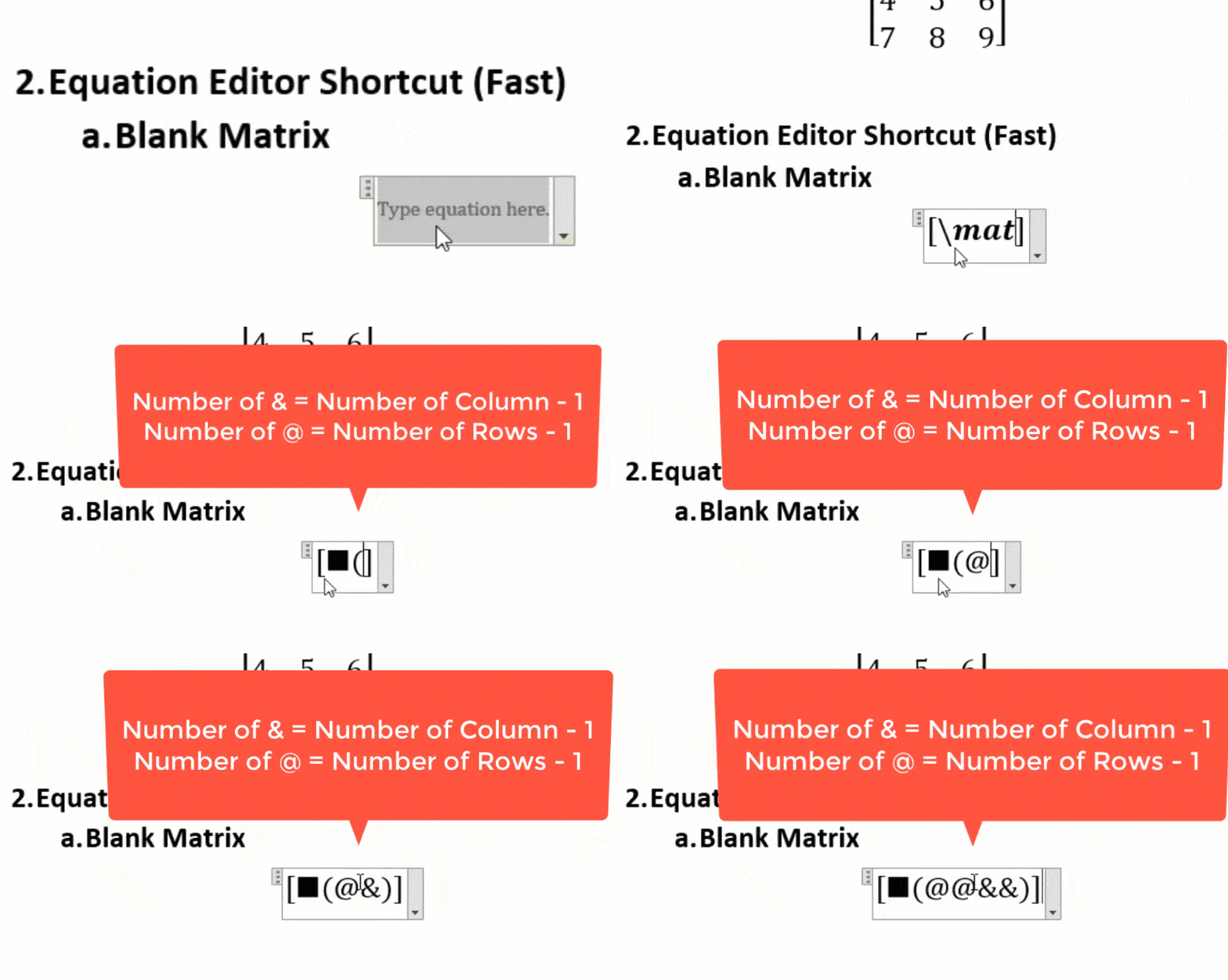 Animation of fastest way to insert matrix in Ms Word using equation editor shortcut.
 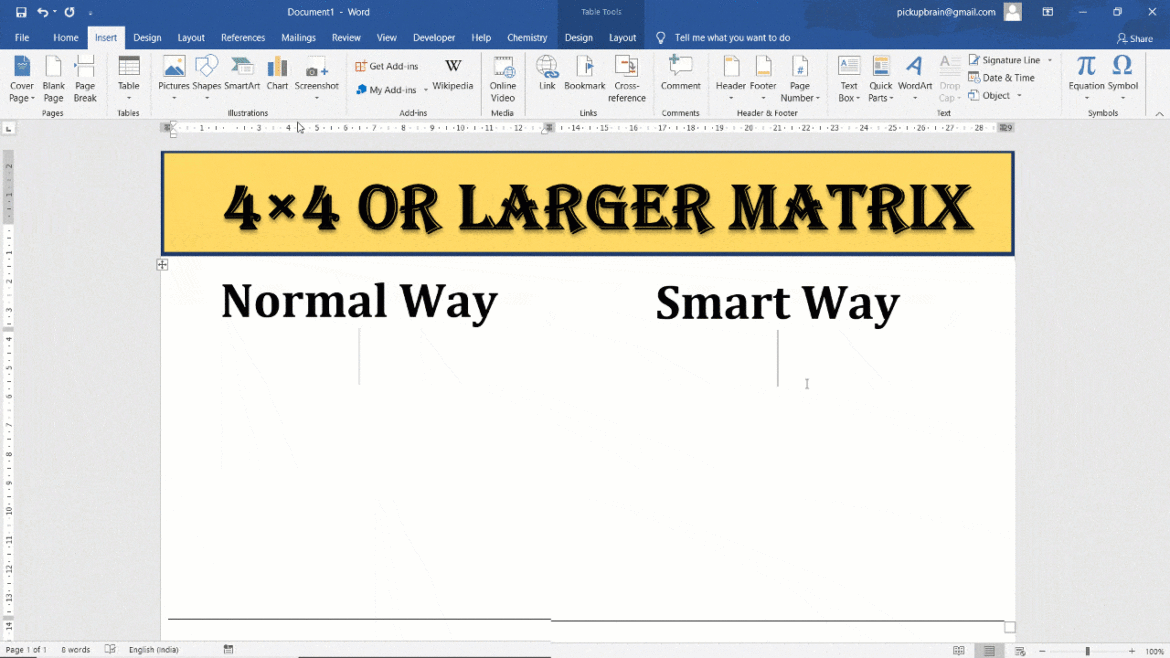 Speed comparison of Two methods to insert 4×4 or larger matrix in Microsoft Word
Matrix with elements
You can also create matrix filled with elements using above shortcut. Using this method, we enter elements of the matrix row wise, starting with the top row. Use & to move to the next column and @ for the next row.
| Sr. No. | Equation Editor Shortcut | Output Matrix |
|---|---|---|
| 1 | \matrix(@@&) | |
| 2 | \pmatrix(@@&) or (\matrix(@@&)) | |
| 3 | \Vmatrix(@@&) | |
| 4 | [ \matrix(1&2&3@4&5&6@7&8&9) ] | |
| 5 | \pmatrix(1&2@3&4@5&6) |
For more details and example, visit our blog on different methods and equation editor shortcut for typing matrix in Ms Word.
Piece wise function
There are two ways to insert piece wise function in using Equation Editor shortcut in Ms Word. First one uses \cases() method while the second one uses \matrix(). In both the cases, desired piecewise functions are entered inside the parenthesis.
Like matrix, @ is used as a row separator. To get only the opening curly braces { which automatically extends the height of piecewise function, use \close in place of closing }.
| Sr. No. | Equation Editor Shortcut | Output | Note |
|---|---|---|---|
| 1 | f(x) = { \cases(x, x>=0@-x, x<0) \close | @ is used as row separator and \close is required to ensure opening { expands vertically to cover all cases | |
| 2 | f(x) = { \matrix(x & x>=0@-x & x<0) \close | Similar to above, & is used as column separator | |
| 3 | f(x) = { \matrix(x & x>=0@-x & x<0) | Without \close, opening { doesn’t expand |
Integral, Sum and Product
Shortcut for integral sign, sum and product signs are \int, \sum and \prod. You can use _ and ^ for inserting text below and above signs, respectively.
| Equation Editor Shortcut | Output | Note |
|---|---|---|
\int<sp>f(x)dx | ||
\int_(x=0)^1<sp>f(x)dx | _ for lower limit and ^ for upper limit | |
\iint<sp>f(x)dx | \iint for double integral | |
\iint\below(S)<sp>ds | use \below to put text below symbol | |
\iiint\above(V)<sp><sp>dV | use \above to put text above symbol | |
\oint<sp>f(x)dx | \oint for cyclic integral; similarly use \oiint for cyclic double integral | |
\sum_(i=1)^n<sp>A_i<sp> | \sum for summation; _ & ^ place text below/above. Parentheses group text with spaces | |
\prod_(n=0)^N<sp>x^n<sp> | Similar to sum |
Ms Word shortcut for typing Integration, Sum and Product
Conclusion
Math Autocorrect shortcut provides useful shortcuts for typing most of the mathematical expression. They are often the fastest and efficient way of typing equation in Ms Word.